 Gaugebook
A Fuelly alternative for iPhone that keeps your history
If you have years of fill-ups in Fuelly, you don't have to start over. Gaugebook reads Fuelly's CSV export and rebuilds your vehicles and history on your iPhone.
Step by step
- Sign in on the Fuelly website and export your fuel-ups as a CSV file. According to Fuelly's help pages, the export link is on your vehicle profile under Recent Fuel-ups, and at the bottom of View All Fuel-ups.
- Save the file to the Files app on your iPhone. AirDrop from a Mac or iCloud Drive both work.
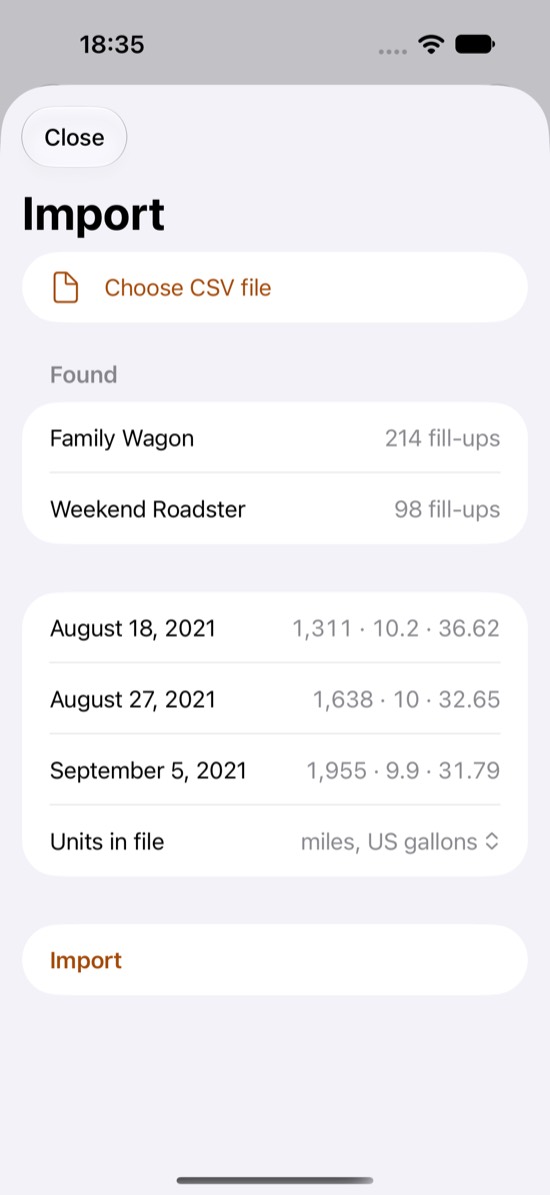
- In Gaugebook, tap + and choose Import CSV, then pick the file. Gaugebook shows the vehicles and fill-ups it found, and the first rows as it read them.
- Check that the units match your data (miles and US gallons, miles and UK gallons, or km and litres), then tap Import.
Each vehicle in the file becomes its own vehicle in Gaugebook. Partial fill-ups, missed fill-ups and notes come along. Rows that can't be read are counted and skipped, never guessed.
What it costs: importing one vehicle with its whole history is free. All of it counts towards your economy and charts; the list shows your ten latest fill-ups, and Gaugebook Pro shows them all. A file with several cars needs Pro to bring them all in; without it you choose which car to bring. CSV export out of Gaugebook is always free.
Email me when Gaugebook launches
What comes across from a Fuelly file
| Fuelly column | In Gaugebook |
|---|---|
| car_name | Vehicle name. Several cars in one file become several vehicles. |
| fuelup_date | Date of the fill-up |
| odometer | Odometer reading. If your vehicle is tracked by trip distance in Fuelly, the file has no odometer column: Gaugebook then adds up the distances and asks what your odometer and trip meter show today, so the history is placed where your odometer really was. |
| litres or gallons | Amount filled |
| Units | Fuelly writes the file in the units your account is set to show, and keeps the odometer in the units the vehicle is tracked in. Gaugebook brings each vehicle back to the units it is tracked in. A vehicle tracked by trip distance has no odometer to go by: for those, set Units on Fuelly to the units you use before you export. |
| price | Fuelly stores the price per litre or gallon. Gaugebook multiplies it by the amount to get the total for the fill-up. |
| partial_fuelup, missed_fuelup | Kept, so your economy is calculated the same way |
| notes | Kept |
| tags, city_percentage, location | Not imported |
| Service records | Fuelly exports these as a separate file, with Export Services next to Export Fuel-ups. Import it after the fuel-ups: each service, expense or note becomes an entry in the vehicle's service log with its date, odometer, cost and text. The service log is part of Gaugebook Pro. |
Checked against exports made on fuelly.com in November 2026, in US, UK and metric units, with odometer and trip tracking. If your file looks different, or a fill-up comes out wrong, send us a few rows and we will fix it.
What Gaugebook does not do
No comparison with other drivers of the same car, no Android app, no web version, no fuel price map and no trip logging. It is a private log of your own cars on your own iPhone.
What you get in Gaugebook
| Feature | Gaugebook |
|---|---|
| Fuel economy | Full-tank to full-tank, with partial and missed fill-ups handled correctly |
| Units | MPG (US and UK), L/100 km, km/L, kWh for electric cars |
| Costs | Cost per mile or km, total spend, monthly spend chart |
| Service | Service log with reminders by date or distance |
| Account | None needed. Data stays on your iPhone. |
| Your data | Free CSV export at any time |
Other apps
Exports from other fuel apps work too, as long as the CSV has columns for date, odometer and amount. Gaugebook recognises common column names such as date, odometer, gallons, litres, kwh and total price, and both comma and semicolon files with either decimal style.
Questions
Something didn't import the way you expected? Send the file (or a few rows of it) to [email protected] and we will look at it.